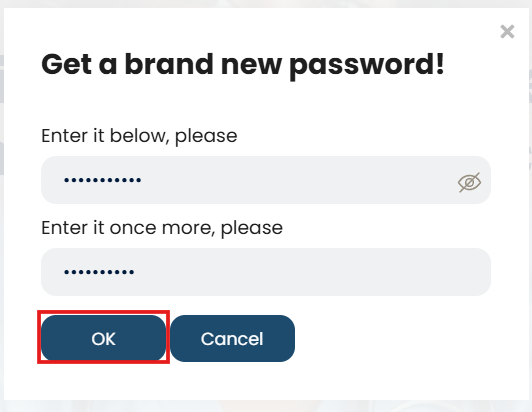
You can enroll to and attend a webinar activity directly on the Knowledge Lab platform by following these easy steps:
1. Visit Knowledge Lab and ‘Sign up’ to register your account (once-off) or ‘Sign in’ to your existing account.
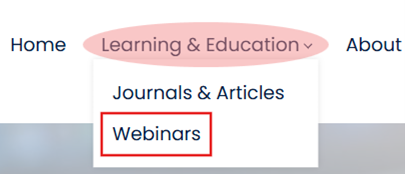
2. Click on ‘Learning & Education’ on the navigation bar (top) and select ‘Webinars’ from the drop-down list to view the available webinars.
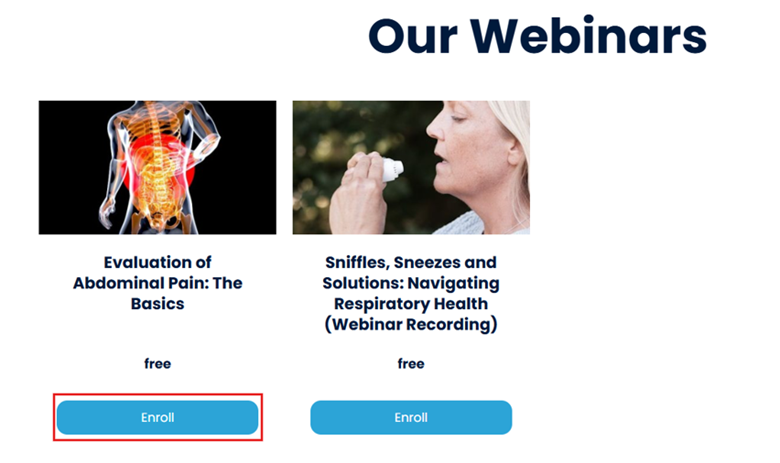
3. Click
on ‘Enrol’ on the webinar activity that you want to attend to visit the webinar
page.
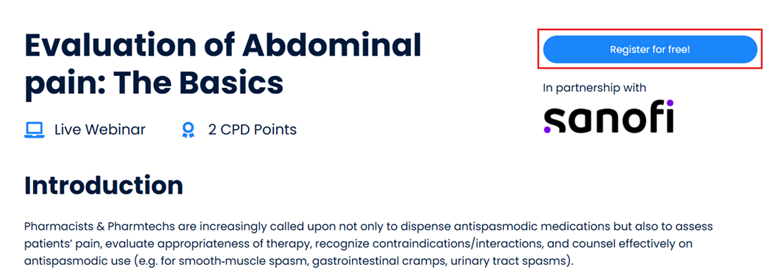
4. Click
on ‘Register for free!’ to enrol to the webinar activity.
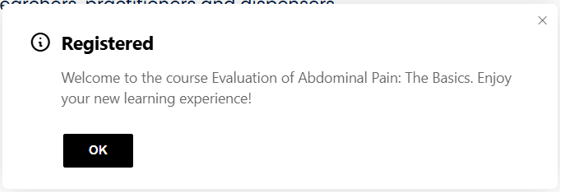
A notification will pop-up confirming your enrolment / registration to the webinar activity
5. Click on ‘Continue’ to access the activity.
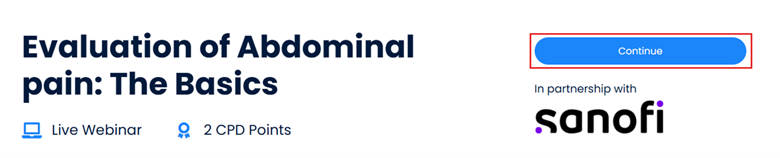
You will be directed into the activity to access from where you will join the webinar and access the pre- and post quizzes (any relevant material as applicable).
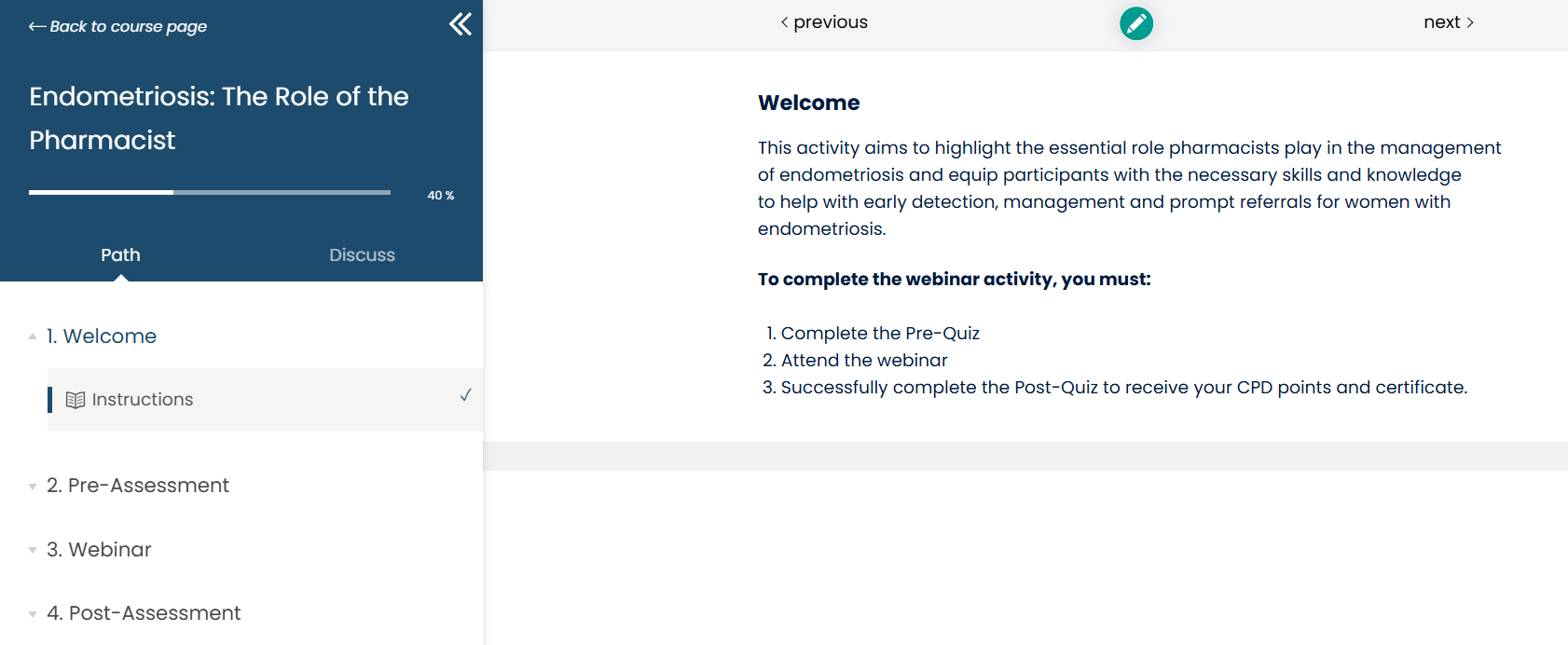
6. You can navigate through the course material via the ‘Previous’ and ‘Next’ buttons on the top navigation bar and track your progress on side menu.
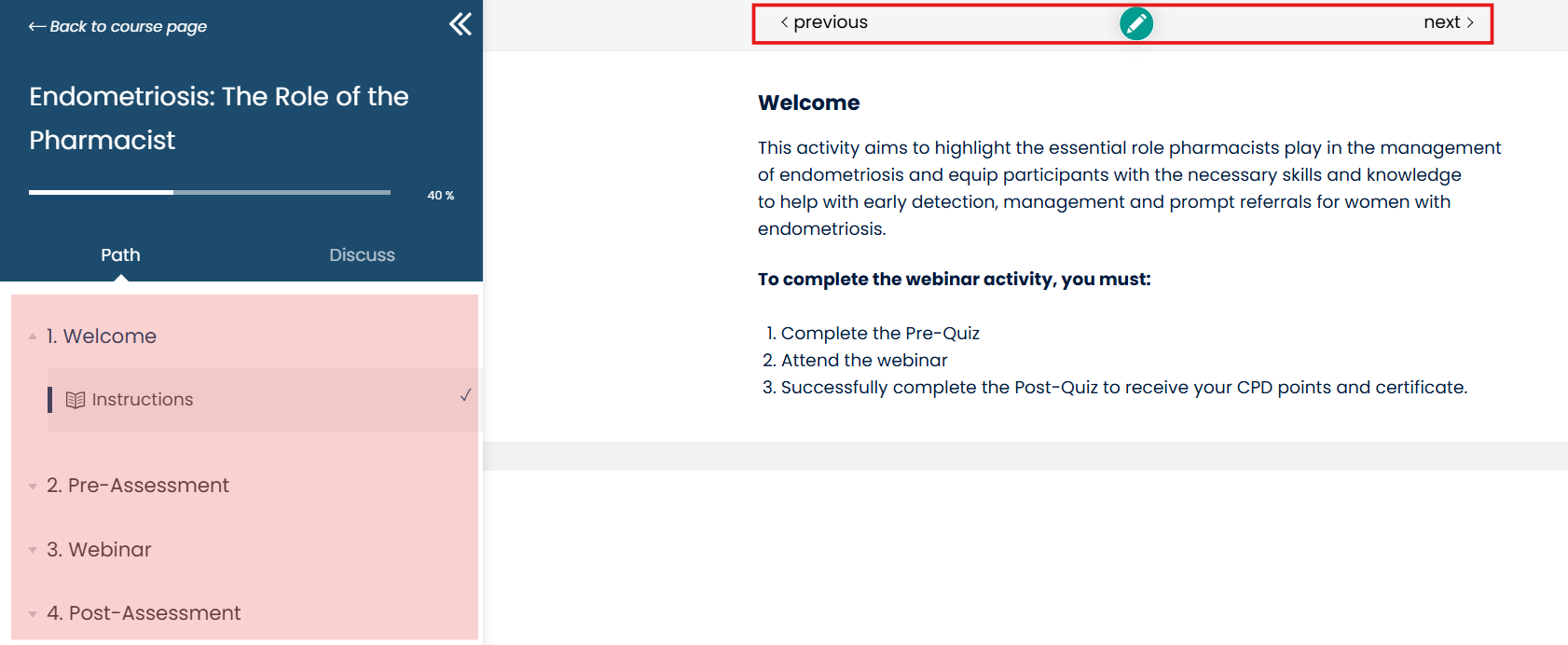
Take note that once you've completed the Pre-Quiz assessment, you will receive access to the webinar activity.
The link to join the live session won’t be available until it’s time to join in.
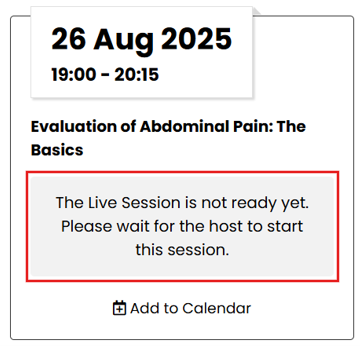
7. When the live session is ready, click on ‘Join Live Session’ to join the webinar hosted on Microsoft Teams.